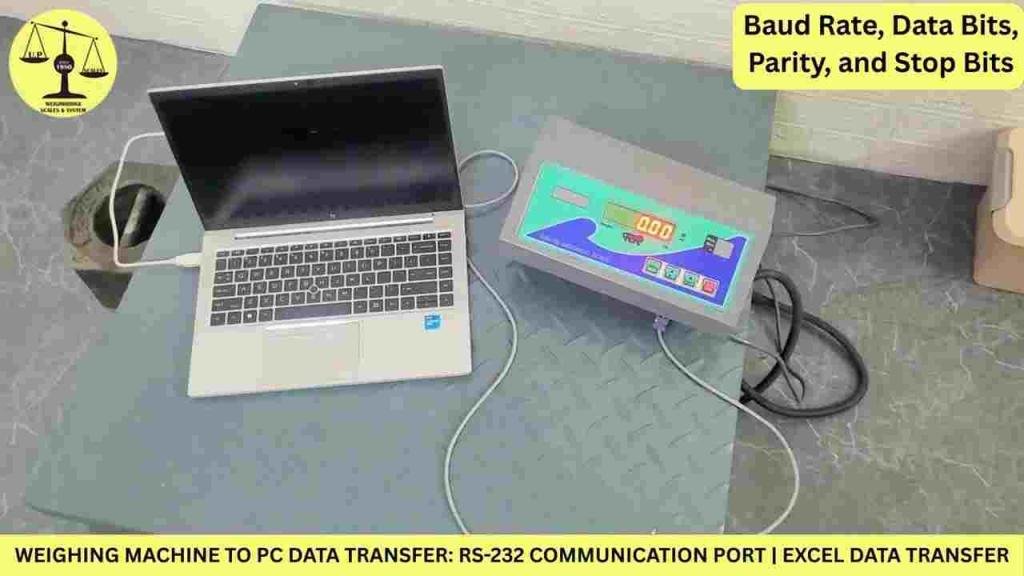
Learn how to connect your RS-232 weighing scale to a PC and send real-time weight data directly into Excel. Step-by-step guide covers hardware setup, serial port configuration (baud rate, parity), VBA macros, and auto-printing.
If you're still scribbling down weight readings on a notepad and typing them into a spreadsheet later, you already know the pain: it's slow, error‑prone, and a complete waste of time when you have dozens or hundreds of items to weigh every day.
The good news? Most industrial scales—bench scales, floor scales, even heavy‑duty truck scales—come with a built‑in RS‑232 serial port. That little port is your gateway to fully automated data logging. With the right cable and a few simple settings, you can have your scale send real‑time weight values directly into Excel, automatically, every time you place something on the platform.
In the video I've linked below, I walk you through the entire process from start to finish—hardware, software, and even a live demo of automatic printing. This blog post summarises the key steps and gives you the bigger picture of what's possible.
Why RS‑232? Isn't That Obsolete?
RS‑232 has been around for decades, and that's exactly why it's still everywhere in industrial equipment. It's reliable, straightforward, and supported by practically every weighing indicator on the market.
Think of it as a digital "serial conversation" between your scale and your computer. The scale sends a text string containing the weight (and sometimes stability status, units, etc.) over the serial line. Your PC receives that string, and with a little help from Excel's data import features or a simple macro, you can parse and record it instantly.
No need for expensive middleware—just a cable and a few minutes of configuration.
What You'll See in the Video (Step by Step)
The tutorial is split into four logical parts. Here's a preview:
1. Getting the Hardware Right
First, you need a proper RS‑232 cable—usually a 9‑pin D‑sub (DB9) male‑to‑female or female‑to‑female, depending on your scale's port. If your computer doesn't have a serial port (most modern laptops don't), you'll also need a USB‑to‑RS‑232 converter. These are cheap and work perfectly once the right driver is installed.
In the video, I show exactly which pins to connect and how to avoid common mistakes like crossing TX/RX lines.
2. Matching Communication Parameters – The Make‑or‑Break Step
This is where most people get stuck. Your scale and your computer must agree on the "speed" and "format" of the conversation. You'll need to check your scale's manual (or dive into its setup menu) for these four values:
Baud rate – often 9600, 4800, or 2400
Data bits – usually 7 or 8
Parity – None, Even, or Odd
Stop bits – 1 or 2
Once you've noted them down, you set the same values on the PC side—either in a terminal program or directly inside Excel's data connection wizard. I demonstrate this clearly so you can follow along with your own scale.
3. Capturing Real‑Time Weights in Excel
Excel isn't just for spreadsheets—it can also act as a data receiver. I show two methods:
Method A: Use Excel's built‑in "From Text/CSV" or "From Web" (with a local serial connection) to pull data.
Method B: Use a free serial monitor to capture the stream, then copy‑paste—but that's only for testing.
For true automation, I also give a quick tip on using a simple VBA macro that listens to the serial port and writes each new stable reading into the next empty row. That way, you don't have to press any buttons—just put the item on the scale, wait for the reading to stabilise, and it's logged.
4. Auto‑Printing from Excel – Live Demo
One of the coolest parts of the video is the live demo of Excel triggering an automatic print job every time a new weight is recorded. This is incredibly useful if you need to print labels, receipts, or quality‑control tickets on the spot—no manual printing, no missed records.
Beyond RS‑232: What Else Can You Do?
RS‑232 is just the starting point. As your business grows, you might want to move to more advanced connectivity. At UP Scales, we handle a wide range of industrial communication protocols, including:
4‑20 mA analog output – direct integration with PLCs and HMIs
Ethernet / Wi‑Fi – for remote monitoring across your facility
Bluetooth – wireless weighing without cables
RS‑485 Modbus RTU and Modbus TCP – ideal for multi‑scale networks
Virtual serial over USB – when you only have USB ports available
Set‑point controllers – for batching, filling, and alarm triggers
So even if your current project is as simple as one scale to one PC, you're not locked in—we can help you scale up later without replacing your entire hardware.
Who Should Care About This?
This setup is a game‑changer if any of these sound like your daily reality:
You manually type weights into an ERP, inventory system, or billing software.
You have to reconcile hundreds of weighments per shift.
Your production line needs to link weight data with batch numbers or QC decisions.
You're tired of disputes caused by illegible handwriting or transposition errors.
You want a low‑cost, low‑effort way to digitise your weighing operations.
The video shows a simple RS‑232‑to‑Excel example, but the same principles apply to connecting to databases, cloud platforms, or custom applications.
About UP Scales
UP Scales is a legally certified weighing solutions provider and an authorised channel partner for Essae weighing products. We don't just sell hardware—we design and implement complete data‑capture systems, from a single instrument to an entire factory floor network.
If you watch the video and have questions—or if you'd like a customised solution for your specific scale model and software environment—please reach out.
We also offer free online tools on our site, including density & gold calculators, weight‑selection tools, MRP label generators, volumetric weight calculators, piece‑counting calculators, and a GST calculator for India—feel free to explore.
Tower lamps, also known as stack lights or signal towers, provide exactly that. These rugged, highly visible LED light stacks mount directly onto or near the weighing console and illuminate in different colours to indicate specific conditions.
While these two accessories serve different equipment types (portable scale vs. fixed console), they share a common goal: improving the physical interaction between the operator and the weighing system.
These roller attachments come in three standard platform sizes—450 x 550 mm, 550 x 650 mm, and 700 x 800 mm—ensuring compatibility across a wide range of bench and floor scale platforms.